


Scan Hero: Scanner App
4.5713.00 Reviews
App Specs
- Version
- 1.67.4
- Updated On
- License
- Free
- Downloads
- 10,000,000+
- Developer
- Mosaic Srl
- Categories
- Business
- Platform
- Android, iOS
Screenshots
 Analysis by AppCompare
My first useful test of Scan Hero: Scanner App would be a one-page form I need to send before the end of the day. I want a readable file, not a perfect archival copy, and I don’t want to hunt for a printer or desk scanner. That is the sort of everyday task this business app is meant to make less fiddly: turn a paper page or picture into a document I can keep or share from my phone.
I’d approach it as a handy utility rather than a replacement for every scanner workflow. A phone camera is convenient, but the result depends on the page being flat, the light being decent, and the text being in focus. Scan Hero is most useful when I need a quick, practical digital copy; for delicate originals, large stacks of paperwork, or work that demands consistent archival quality, a dedicated scanner may still be the calmer choice.
What to expect from a pocket scanner
Scan Hero is developed by Mosaic Srl and is free to install, with optional in-app purchases priced from $1.99 to $99.99 per item. It has a 4.5 average from around 65,000 ratings, and more than 10 million installs. Those figures suggest it has found a broad audience, but I’d judge it by whether it fits my own routine: occasional document capture is a different need from scanning paperwork every day.
The app is rated for Everyone, first released on May 17, 2018, and its current version is 1.67.4, with Android 7.0 as the minimum operating system. It belongs in the practical business-tool corner of a phone, not the same category as a full desktop document-management system. I’d expect a quicker path from paper to shareable file, while keeping in mind that a mobile scan is still a camera capture and can inherit the camera’s limitations.
Getting Started with Scan Hero
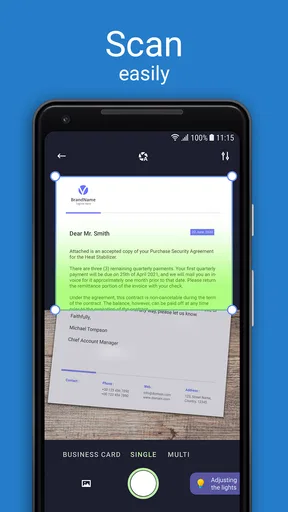
First things first, downloading Scan Hero was a breeze. It's available on both Android and iOS platforms, so no one feels left out. Once you get it up and running, you'll notice a clean and intuitive interface, which is always a plus in my book. I didn't have to spend ages figuring out how to use it. Everything you need is right there at your fingertips.
Features That Stand Out
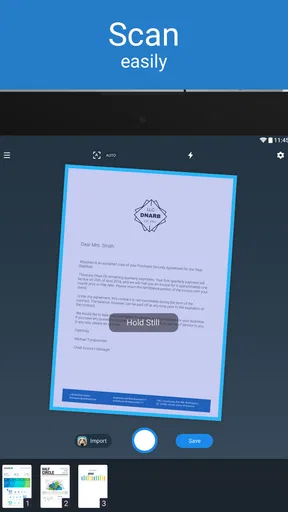
One of the standout features of Scan Hero is its ability to quickly and accurately scan documents. Whether it's receipts, contracts, or even handwritten notes, the app handles it all with surprising precision. The quality of the scans is impressive, almost as if you were using a traditional scanner. I found this particularly useful for capturing text-heavy documents where clarity is a must.
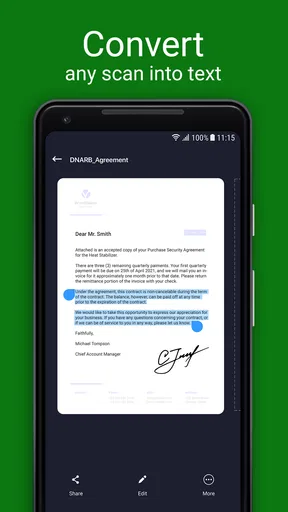
Another handy feature is the app's OCR (Optical Character Recognition) capability. This allows you to convert scanned images into editable text. It's perfect for when you need to extract information from a document without retyping it all manually. I tried it out with a few different fonts and layouts, and it performed admirably.
Worth Reading Before You Choose

Flipboard Shows What News Apps Must Do Beyond the Feed

Switching to Android Auto Means Rethinking Your Driving Routine

Google Calendar Makes a Crowded Week Easier to Manage

Ludo King Makes the Most of the Minutes Between Plans

Baby Panda World Brings Quick Play to Modern Phones, but Its Game Library Feels Busy

ESPN’s Live Game View Makes Following Close Games Easier
Organizing and Sharing Made Easy
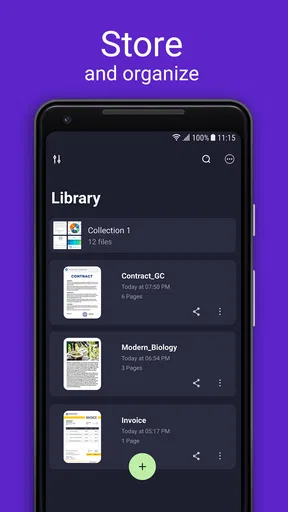
Once you've scanned your documents, organizing them is a piece of cake. The app lets you create folders and sort your scans in a way that makes sense to you. Need to find that one receipt from last month? No problem – just a few taps and you're there.
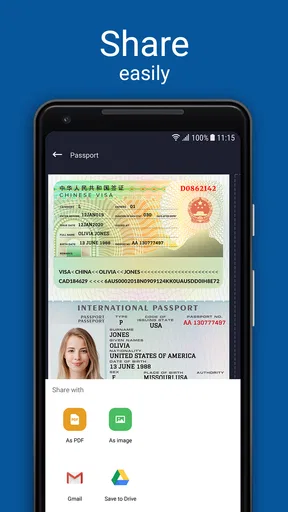
Sharing documents is equally straightforward. You can send your scans via email, or save them to cloud services like Google Drive or Dropbox. This kind of flexibility is crucial, especially if you're always on the move and need to access your documents from different devices.
The User Experience
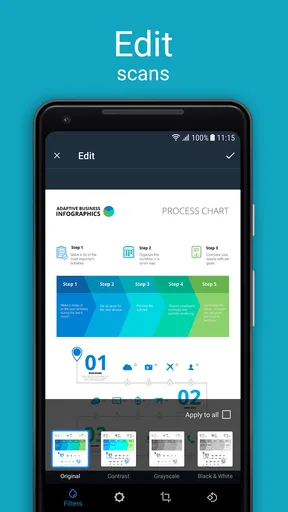
Using Scan Hero feels seamless and fluid. The app responds quickly, which is essential when you're trying to capture a document on the fly. I also appreciate the little touches, like the ability to enhance the scan quality with filters and adjust settings to get the perfect result. It's these small details that enhance the overall user experience.
One thing worth mentioning is the app's in-app purchases. While the free version is quite robust, there's a premium version that unlocks additional features like batch scanning and ad-free usage. For someone who uses the app frequently, it might be worth the investment. I personally found the free version sufficient for my needs, but it's nice to have the option if you want to go pro.
First successful scan: make the page easy to read
For a first run, I’d keep the task simple: choose a single sheet with clear, dark text, place it on a contrasting flat surface, and avoid casting a shadow across the writing. Hold the phone steady and check the edges before accepting the capture. This small bit of care often matters more than trying every filter afterward. If the page is tilted or the print is blurred, enhancement can improve appearance but cannot restore details the camera never captured sharply.
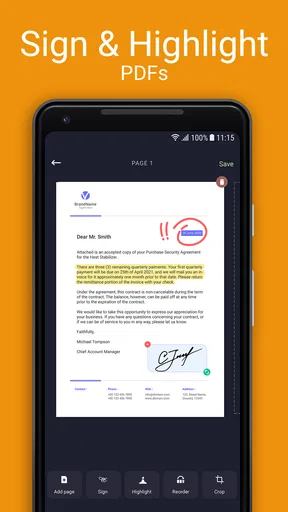
Before sending a scan, I’d zoom in on the smallest text and inspect the corners. A page can look fine as a thumbnail yet lose legibility when opened full size. For a form with handwriting, I’d also check that signatures and dates remain visible after any cleanup. My practical rule is to prioritize readability over a dramatic high-contrast effect; a natural-looking page is usually easier for someone else to review.
Small workflow choices that save time later
Folders are more useful when they reflect how I search, rather than how the documents were created. For example, I might separate “tax,” “work,” and “home” instead of making a folder for every scanning session. I’d name a file with a recognizable subject and date before sharing or storing it, where the app’s available naming controls allow. That makes a receipt or signed form easier to retrieve weeks later than a camera-style default name.
For a multi-page agreement, I’d capture pages in order and review the complete file before sending it. A missed page or a reversed sheet is easy to overlook when moving quickly, and the recipient may not know anything is missing. If I’m scanning several unrelated receipts, I’d keep them as separate documents rather than combining everything into one long file. That is a modest organizational habit, but it helps prevent a quick capture from becoming a messy archive.
OCR is helpful, but it still needs a human check
Text recognition is most valuable when I need to reuse a short passage, locate a name, or avoid typing a straightforward printed line again. It is less dependable as a substitute for reading a complex page. Columns, tiny print, unusual type, handwritten entries, and stamps can all make the extracted text harder to trust. I’d compare important names, account details, totals, and dates against the original before copying them into another document or message.
I also wouldn’t treat recognized text as the only copy of a document. Keeping the scan alongside any extracted wording gives me a way to check context and catch recognition mistakes. For a brief office note, OCR may save a few minutes; for a contract or application with consequential details, careful proofreading remains part of the job.
Where it fits beside other scanning options
Compared with taking an ordinary camera photo, a scanner app is a better fit when I want a document-oriented result that I can organize and share as a file. Compared with a physical flatbed or office scanner, a phone-based workflow wins on convenience and availability, not on hands-free speed or repeatable output. I would choose Scan Hero for a receipt at a café, a permission form that needs to go back today, or a note I want to keep with my paperwork. I would choose a dedicated scanner for a thick pile of pages or a job where every page needs the same controlled finish.
The built-in camera may be enough if I only need to show someone what a page says and do not need a tidy document workflow. Conversely, if my workplace already has an approved scanning process for sensitive files, I’d follow that rather than move documents into a personal phone app for convenience. The right choice depends less on which tool has the longest feature list and more on the document’s purpose, privacy needs, and how polished the final copy must be.
Common snags and when I’d skip it
The most common disappointment with any mobile scanner is expecting it to rescue a bad capture. Glare on glossy paper, a curled edge, dim lighting, or a shaky hand can all make a scan harder to read. I’d move the page near even light, flatten it, and retake the image before spending time adjusting its look. Receipts printed on faint thermal paper can be especially difficult; I’d inspect the result while the original is still available rather than assume it will remain readable later.
I’d also think about the document before scanning it. A casual receipt or class handout is a straightforward use, while highly confidential paperwork deserves more care about where the file is stored and shared. If I only scan something once in a while, I may not need optional purchases at all. If I regularly process batches, I’d compare the cost and limits shown in the app with the time saved before paying, rather than assuming every paid feature is essential.
Who will get the most from it?
I think the best match is someone who handles occasional paper in a mobile routine: a freelancer collecting receipts, a student saving printed notes, a parent sending a signed school form, or a small-business owner keeping a quick digital copy of a document. The strongest benefit is not that a phone becomes a high-volume office machine; it’s that the scanner is already with you when a paper task appears unexpectedly.
It is less suited to someone who needs a strict records-management system, dependable processing of large batches, or a controlled process for confidential business files. It also won’t make poor lighting or faint ink disappear. If those needs describe your work, a dedicated scanner or an organization-approved tool is a more sensible choice. For occasional, practical captures, though, the free starting point makes it easy to see whether the workflow suits you before considering an optional purchase.
Wrapping It Up
All in all, Scan Hero: Scanner App is a solid choice for anyone in need of a portable scanning solution. It's easy to use, packed with features, and is versatile enough to handle a variety of scanning tasks. Whether you're a student, a professional, or just someone who likes to keep their paperwork organized, this app is definitely worth a try.
If you're ready to transform your phone into a powerful scanning tool, Scan Hero is just a download away. Give it a whirl and see how it simplifies your document management needs. Trust me, once you start using it, you'll wonder how you ever managed without it.
My recommendation is to start with one low-stakes page, inspect the result, and try the full path from capture to folder to sharing before relying on it for a deadline. That quick trial will show whether the image quality, organization, and optional features match your habits. If it does, Scan Hero can be a reassuring pocket helper; if you need high-volume or tightly controlled scanning, it’s better to choose a tool built for that job.
Pros
- Easy-to-use interface for quick scanning.
- High-quality scan results with clear detail.
- Supports multiple file formats
- including PDF.
- Integrates seamlessly with cloud services.
- Offers customizable scan settings for precision.
Cons
- Limited features in the free version.
- Requires subscription for advanced tools.
- Ads can be intrusive during use.
- Occasional crashes on older devices.
- Large file sizes can slow down uploads.
FAQs for Scan Hero: Scanner App
What features does Scan Hero offer for document scanning?
Scan Hero provides a robust suite of features for document scanning. Users can easily digitize documents using their device's camera, apply filters for optimal clarity, and organize scans into folders. The app also supports OCR (Optical Character Recognition) for converting images to text, making it extremely versatile for personal or professional use.
Is Scan Hero compatible with both Android and iOS devices?
Yes, Scan Hero is designed to be compatible with both Android and iOS platforms. This cross-platform availability ensures that users can seamlessly access and utilize the app’s features, regardless of whether they are using an Android smartphone or an iOS device like an iPhone or iPad.
How secure is my data when using Scan Hero?
Scan Hero prioritizes user data security. The app offers options for password-protected PDFs and ensures that all scans are stored locally on your device unless you choose to upload them to a cloud service. Users should review the app’s privacy policy to understand data handling practices fully.
Does Scan Hero support cloud integration for document storage?
Yes, Scan Hero supports integration with popular cloud services such as Google Drive, Dropbox, and iCloud. This feature allows users to easily upload, store, and access their scanned documents from any device, ensuring that important files are safely backed up and accessible anytime.
Are there any subscription fees for using Scan Hero?
Scan Hero offers both free and premium subscription options. The free version provides basic scanning functionalities, while the premium subscription unlocks advanced features like unlimited scans, additional editing tools, and OCR capabilities. Users can choose the plan that best suits their needs and budget.


